


Grow in ways you never thought possible with UWF Online
Apply NowA leader in online learning, the University of West Florida offers numerous online programs to help you become a part of the next generation of big thinkers. Ranked in the top 10 in Public Universities of the South by U.S. News & World Report in 2024, we are committed to providing an affordable, future-focused education designed for modern learners.
Our online degree programs are designed to fit your demanding schedule. We offer multiple start dates each year, so you can begin your degree program when it works best for you. Choose from programs in health sciences, nursing, social work, education, technology and more. Achieve your educational and professional goals with a degree from UWF Online.
Request Information
UWF Online Degrees
Bachelor’s Programs
- Accounting, B.S.B.A.
- Bachelor of General Studies, B.G.S.
- Clinical Lab Sciences, B.S. - MLT to MLS
- Criminal Justice, B.A.
- Exceptional Student Education, B.A.
- Finance, B.S.B.A.
- General Business, B.S.B.A.
- Global Hospitality and Tourism, B.S.
- Health Sciences, B.S. – Behavior Analysis
- Health Sciences, B.S. - General
- Health Sciences, B.S. - Healthcare Administration
- Human Resource Management, B.S.B.A.
- Instructional Design and Technology, B.S.
- Interdisciplinary Social Sciences, B.A. - Community Education
- Maritime Studies, B.A.
- Psychology, B.A.
- Public Health, B.S.
- RN to BSN
- Supply Chain Management, B.S.B.A.
Master’s Programs
- Accountancy, M.Acc.
- Computer Sciences, M.S.
- Criminal Justice, M.S.
- Curriculum and Instruction, M.Ed.
- Curriculum and Instruction, Ed.S.
- Cybersecurity, M.S.
- Data Science, M.S.
- Educational Leadership, M.Ed.
- English, M.A.
- Environmental Science, M.S.
- Exceptional Student Education, M.A. - Applied Behavior Analysis
- Exceptional Student Education, M.A. - Special Education
- Executive MBA: Leadership Practice and Purpose
- Family Nurse Practitioner FNP, MSN
- Geographic Informational Science Administration, M.S.
- Health Promotion & Worksite Wellness, M.S.
- Healthcare Administration, M.H.A.
- Information Technology, M.S.
- Instructional Design and Performance Technology, M.Ed.
- International Affairs, M.A.
- Master of Business Administration, MBA
- Mathematical Sciences, M.S.
- Movement Sciences & Health, M.S. – Sports Performance and Coaching Specialization
- Nursing Education, MSN
- Nursing Leadership, MSN
- Political Science, M.A.
- Public Administration, M.S.A.
- Public Health, M.P.H.
- Reading, M.Ed.
- Social Work, MSW
- Sport Administration, M.S.A.
Undergraduate Certificate Programs
- Business Analytics Certificate
- Chemistry for Laboratory Health Sciences Certificate
- Data Fluency Certificate
- Database Systems Certificate
- Engineering Professional Certificate
- Entrepreneurship and Innovation Certificate
- Finance Certificate
- Fraud Examinations Certificate
- GIS Certificate
- Human Resources Management Certificate
- Information Security Management Certificate
- Intelligence Analysis Certificate
- Management Development Certificate
- Medical Laboratory Sciences Certificate
- Special Topics in Healthcare Administration Certificate
Graduate Certificate Programs
- Acquisition and Contract Administration Certificate
- Advanced Data Science Certificate
- Business Analytics Graduate Certificate
- Current and Emerging Instructional Technology Certificate
- Cybersecurity Graduate Certificate
- Cybersecurity Management Certificate
- Data Science Graduate Certificate
- Entrepreneurship Graduate Certificate
- GIS Graduate Certificate
- Graduate Business Foundations
- Health Informatics Certificate
- Human Performance Improvement Certificate
- Human Resources Management Graduate Certificate
- Managing Sustainability and Resiliency
- Nursing Education Graduate Certificate
- Online Teaching and Learning
- Public Health - Emergency Management and Infection Control
- Public Health - Environmental and Occupational Health
- Social Media for Public Relations & Advertising
- Sport Analytics Graduate Certificate
- Supply Chain Logistics Management Graduate Certificate
- Teaching English to Speakers of Other Languages (TESOL)
Administration
Business
- Accountancy, M.Acc.
- Accounting, B.S.B.A.
- Executive Business Administration: Leadership Practice and Purpose, MBA
- Finance, B.S.B.A.
- General Business, B.S.B.A.
- Global Hospitality and Tourism, B.S.
- Human Resource Management, B.S.B.A.
- Master of Business Administration, MBA
Earth and Environmental Science
- Environmental Science, M.S.
- Geographic Information Science Administration, M.S.
- Maritime Studies, B.A.
Education
- Curriculum & Instruction, M.Ed.
- Curriculum & Instruction, Ed.D
- Curriculum & Instruction, Ed.S
- Educational Leadership, M.Ed.
- Exceptional Student Education, B.A.
- Exceptional Student Education, M.A. - Applied Behavior Analysis
- Exceptional Student Education, M.A. - Special Education
- Instructional and Performance Technology, Ed.D.
- Instructional Design and Performance Technology, M.Ed.
- Instructional Design and Technology, B.S.
- Interdisciplinary Social Sciences, B.A. - Community Education
- Reading, M.Ed.
Medical and Health Sciences
- Clinical Lab Sciences, B.S. – MLT to MLS
- Health Promotion & Worksite Wellness, M.S.
- Health Sciences, B.S. – Behavior Analysis
- Health Sciences, B.S. – Healthcare Administration
- Health Sciences, B.S. - General
- Healthcare Administration, M.H.A.
- Movement Sciences & Health, M.S. – Sports Performance and Coaching Specialization
- Psychology, B.A.
- Public Health, B.S.
- Public Health, M.P.H.
- Social Work, MSW
Military/Law Enforcement
Nursing
Technology and Computer Science
Bachelor’s Programs
- Accounting, B.S.B.A.
- Bachelor of General Studies, B.G.S.
- Clinical Lab Sciences, B.S. - MLT to MLS
- Criminal Justice, B.A.
- Exceptional Student Education, B.A.
- Finance, B.S.B.A.
- General Business, B.S.B.A.
- Global Hospitality and Tourism, B.S.
- Health Sciences, B.S. – Behavior Analysis
- Health Sciences, B.S. - General
- Health Sciences, B.S. - Healthcare Administration
- Human Resource Management, B.S.B.A.
- Instructional Design and Technology, B.S.
- Interdisciplinary Social Sciences, B.A. - Community Education
- Maritime Studies, B.A.
- Psychology, B.A.
- Public Health, B.S.
- RN to BSN
- Supply Chain Management, B.S.B.A.
Master’s Programs
- Accountancy, M.Acc.
- Computer Sciences, M.S.
- Criminal Justice, M.S.
- Curriculum and Instruction, M.Ed.
- Curriculum and Instruction, Ed.S.
- Cybersecurity, M.S.
- Data Science, M.S.
- Educational Leadership, M.Ed.
- English, M.A.
- Environmental Science, M.S.
- Exceptional Student Education, M.A. - Applied Behavior Analysis
- Exceptional Student Education, M.A. - Special Education
- Executive MBA: Leadership Practice and Purpose
- Family Nurse Practitioner FNP, MSN
- Geographic Informational Science Administration, M.S.
- Health Promotion & Worksite Wellness, M.S.
- Healthcare Administration, M.H.A.
- Information Technology, M.S.
- Instructional Design and Performance Technology, M.Ed.
- International Affairs, M.A.
- Master of Business Administration, MBA
- Mathematical Sciences, M.S.
- Movement Sciences & Health, M.S. – Sports Performance and Coaching Specialization
- Nursing Education, MSN
- Nursing Leadership, MSN
- Political Science, M.A.
- Public Administration, M.S.A.
- Public Health, M.P.H.
- Reading, M.Ed.
- Social Work, MSW
- Sport Administration, M.S.A.
Doctorate Programs
Undergraduate Certificate Programs
- Business Analytics Certificate
- Chemistry for Laboratory Health Sciences Certificate
- Data Fluency Certificate
- Database Systems Certificate
- Engineering Professional Certificate
- Entrepreneurship and Innovation Certificate
- Finance Certificate
- Fraud Examinations Certificate
- GIS Certificate
- Human Resources Management Certificate
- Information Security Management Certificate
- Intelligence Analysis Certificate
- Management Development Certificate
- Medical Laboratory Sciences Certificate
- Special Topics in Healthcare Administration Certificate
Graduate Certificate Programs
- Acquisition and Contract Administration Certificate
- Advanced Data Science Certificate
- Business Analytics Graduate Certificate
- Current and Emerging Instructional Technology Certificate
- Cybersecurity Graduate Certificate
- Cybersecurity Management Certificate
- Data Science Graduate Certificate
- Entrepreneurship Graduate Certificate
- GIS Graduate Certificate
- Graduate Business Foundations
- Health Informatics Certificate
- Human Performance Improvement Certificate
- Human Resources Management Graduate Certificate
- Managing Sustainability and Resiliency
- Nursing Education Graduate Certificate
- Online Teaching and Learning
- Public Health - Emergency Management and Infection Control
- Public Health - Environmental and Occupational Health
- Social Media for Public Relations & Advertising
- Sport Analytics Graduate Certificate
- Supply Chain Logistics Management Graduate Certificate
- Teaching English to Speakers of Other Languages (TESOL)
Administration
Business
- Accountancy, M.Acc.
- Accounting, B.S.B.A.
- Executive Business Administration: Leadership Practice and Purpose, MBA
- Finance, B.S.B.A.
- General Business, B.S.B.A.
- Global Hospitality and Tourism, B.S.
- Human Resource Management, B.S.B.A.
- Master of Business Administration, MBA
Earth and Environmental Science
- Environmental Science, M.S.
- Geographic Information Science Administration, M.S.
- Maritime Studies, B.A.
Education
- Curriculum & Instruction, M.Ed.
- Curriculum & Instruction, Ed.D
- Curriculum & Instruction, Ed.S
- Educational Leadership, M.Ed.
- Exceptional Student Education, B.A.
- Exceptional Student Education, M.A. - Applied Behavior Analysis
- Exceptional Student Education, M.A. - Special Education
- Instructional and Performance Technology, Ed.D.
- Instructional Design and Performance Technology, M.Ed.
- Instructional Design and Technology, B.S.
- Interdisciplinary Social Sciences, B.A. - Community Education
- Reading, M.Ed.
Medical and Health Sciences
- Clinical Lab Sciences, B.S. – MLT to MLS
- Health Promotion & Worksite Wellness, M.S.
- Health Sciences, B.S. – Behavior Analysis
- Health Sciences, B.S. – Healthcare Administration
- Health Sciences, B.S. - General
- Healthcare Administration, M.H.A.
- Movement Sciences & Health, M.S. – Sports Performance and Coaching Specialization
- Psychology, B.A.
- Public Health, B.S.
- Public Health, M.P.H.
- Social Work, MSW
Military/Law Enforcement
Nursing
Technology and Computer Science
Why Join UWF Argos Online?
With competitive tuition costs and financial aid opportunities, we work with our Argos to provide access to further their education to unleash their full potential.
World-renowned faculty and robust support resources provide the dynamic opportunities our students need to make an impact in the world.
With multiple start dates per year and convenient online access, UWF students receive a dynamic, high-quality online learning experience.
UWF is recognized as a Gold-level University and ranked No. 5 in the nation for Military Friendly Schools and designated a Military Spouse Friendly School.
Although I live 800 miles away from the UWF campus, I am so proud to be an Argo! I chose UWF because they support military members and military spouses (like me). I love that I am able to pursue my education degree and I hope to become a Florida certified teacher.
As an online student, pursuing my second master's degree, I chose UWF because of its credibility and affordability. The reputation of UWF makes me proud to be a part of the student body.
I am proud to be a part of a top-ranked university in Florida! And my experience is not just based on academic achievement—all of my professors have made a significant impact in my life. The UWF faculty members have not only equipped me with knowledge but also nurtured my character and instilled in me the values that will guide my journey beyond the university walls. I feel truly cared for and recognized as an individual. Go Argos!
Regional Leader, Global Impact
Ranked Best Online Bachelor’s Programs
Excelled in high-impact practices, retention and median wages of graduate metrics
Gold-Level Top 10 Military-Friendly School – Large Public School
UWF Online News
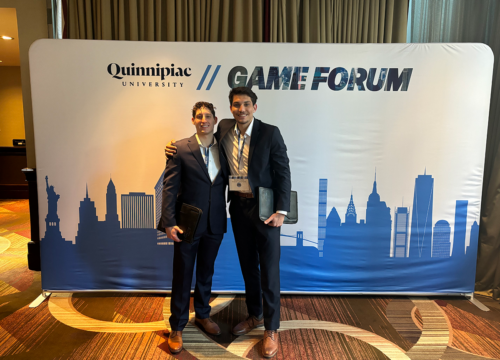
UWF’s student-managed Argo Bond Fund places second in national competition
The University of West Florida’s student-managed Argo Bond Fund placed second among the nation’s student-managed bond funds at the Quinnipiac University Global Asset Management Education’s (QGAME) Global Portfolio Competition held on March 20-21 in New York City. More than 150 universities and 1,400 students participated in the competition.

University of West Florida designated Purple Star Campus
The University of West Florida has been named a Florida Collegiate Purple Star Campus for its commitment to supporting military students and families as they transition to college. UWF was one of the first three universities in the Florida State University System to earn the designation.

UWF online programs continue to rank among best in U.S. News and World Report
The University of West Florida once again ranked among the best in the nation in the 2024 U.S. News and World Report Best Online College rankings. UWF ranked 45th among 348 institutions for Best Online Bachelor’s Programs and 30th for Best Online Bachelor’s Programs for Veterans in the rankings released on Feb. 7.